


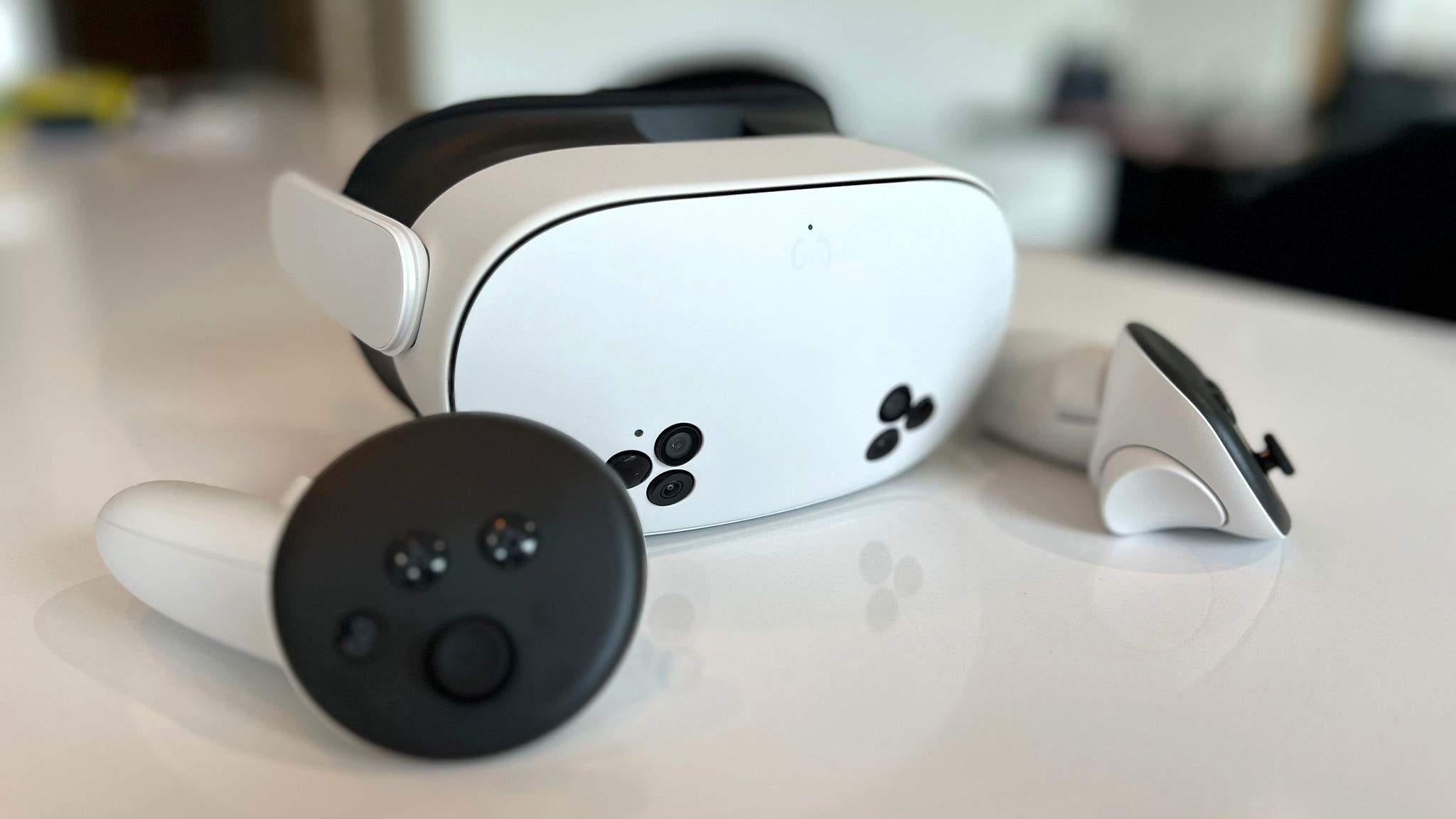

😮 You can make games on the Meta Quest 3S look far better
💪 An $11 program gives games a PS5-Pro like upgrade
🤯 It boosts the resolution and performance without you needing to lift a finger
✅ It’s a little tricky to install but well worth the effort
I said in my Meta Quest 3S review that the $299 headset had sold me on VR – and that remains true. In fact, I’ve been so wowed by the wonders of virtual and mixed reality that I’ve ended up down a VR rabbit hole, investing in accessories, purchasing new games, and researching how to elevate the out-of-the-box experience.
However, I never thought I’d find an app that delivers a PS5 Pro-like upgrade to almost every game for just $11.99 (it’s actually on sale for just $5.99). But that’s exactly what the Quest Games Optimizer app delivers – and it’s a game-changing upgrade.
Unlike with the PS5 Pro, which costs $699.99 to boost a game’s resolution and frame rate and needs developers to release individual game updates, the Quest Games Optimizer delivers essentially the same effect. It substantially boosts the resolution, performance and frame rate of thousands of games, all without you having to lift a finger once it’s installed.
From Batman: Arkham Shadow and Zombieland: Headshot Fever to Fruit Ninja and Resident Evil 4, the Quest Games Optimizer’s impact is immediately noticeable, making everything look sharper, less aliased and crisper on the Meta Quest 3S’s lower resolution display and Fresnel lenses. Even though the difference isn’t as pronounced on the Quest 3, you should still consider it, especially when redeeming older Meta Quest Plus free games that haven’t been optimized for the newer headsets.
Depending on how intensive the game is, the Quest Games Optimizer delivers a HD or HD+ upgrade, with each profile thoroughly tested so you won’t encounter any issues. In return, you get the type of visual enhancement you’d expect to see from new hardware, not from a user-created program. Obviously, the graphical effects remain the same, so don’t expect any changes there, but again – you’re getting better looking games for just $11.99 and with no adverse effects.
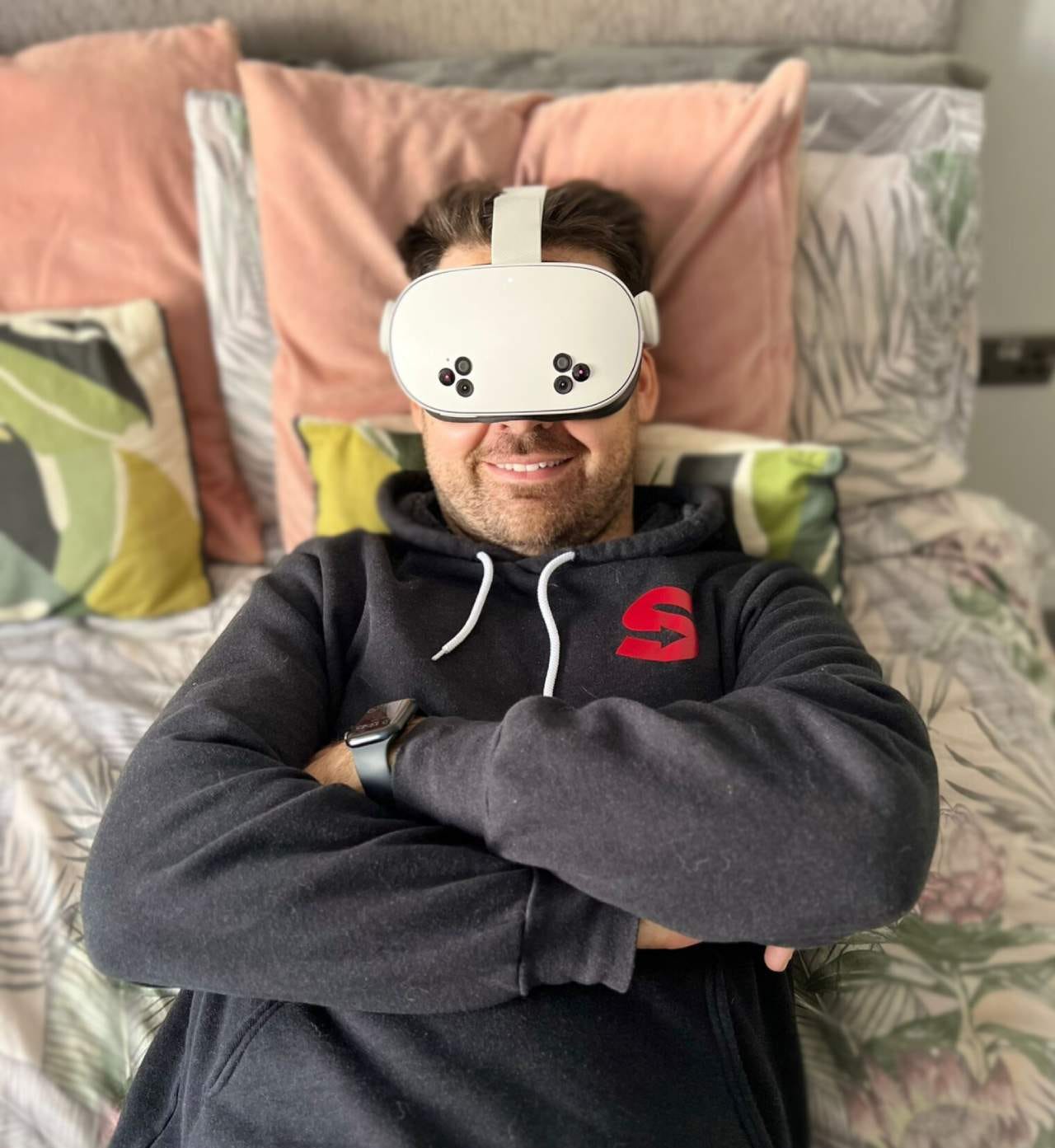
Well, there is one downside, actually. By creating performance profiles that take full advantage of the Quest 3S hardware, your battery life will drain faster than usual. However, it’s honestly worth it, as I’m not someone who can last hours at a time in VR anyway without a break. You can also use battery-saving profiles if that’s something you’d prefer.
How to install the Quest Games Optimizer
The process of installing the Quest Games Optimizer seems daunting at first, but it’s pretty straightforward. The easiest way is to install the app without a PC and just use your headset.
Open the browser while wearing your Meta Quest 3S and head to Itch.io and search for ‘Quest Games Optimizer’. Purchase the program by entering your details and download the file ‘QuestGamesOptimzer.apk’ file on your headset.
You’ll then need to download ‘Mobile VR Station’ from the Meta Quest store. Open the app and go to Configuration Wizard > Show All Options > Configure Scoped Storage > Request Access. Click on the Quest 3 tab from the pop-up and then scroll down to the download folder. From there, install the Quest Games Optimizer file by clicking on the open arrows. Hit continue and install.
Once it’s installed, go to ‘Unknown Sources’ from your game library and open the Quest Games Optimizer. You’ll need to enter the email address you used to purchase the program. Once in, you’ll see a red banner basically saying the program hasn’t been set up properly yet.
You need to click on the red banner and in the ‘Solution #2’ box, click open settings. Ensure that you snap the settings window next to the Quest Games Optimizer. In the settings pop-up, which will look familiar to any Android user, scroll down to ‘About headset’ and ‘Build number’. Keep clicking on it multiple times until it shows that developer mode is enabled.
Next, click on ‘System’ and ‘Developer Options’. Scroll down until you see ‘Wireless Debugging’ and turn the toggle on. You’ll see a pop-up to asking to allow the debugging tool. Make sure you click “Always Allow”.
You then need to click on ‘Wireless Debugging’ again (not the toggle) and get a pairing code. Enter the pairing code into the Quest Games Optimizer.
Finally, you’ll need to make sure you’ve enabled developer mode on your Quest 3S headset. Again, this is super simple to do, but you’ll need to have the Meta Horizon app installed on your phone. Go to developer.oculus.com/manage. Log in with your Meta Quest account and then register as a developer by entering the name of your organization and accepting the terms.
Next, open the Meta Horizon app, click on your profile icon, then device management and your chosen headset. Click headset settings (it’ll need to be on), and press developer mode.
Reboot the Quest Games Optimizer app to check everything’s working and Voilá. Your Meta Quest 3S games will look better than ever from here on out. Enjoy!
Adam Vjestica is The Shortcut’s Senior Editor. Formerly TechRadar’s Gaming Hardware Editor, Adam has also worked at Nintendo of Europe as a Content Marketing Editor, where he helped launch the Nintendo Switch. Follow him on X @ItsMrProducts.