


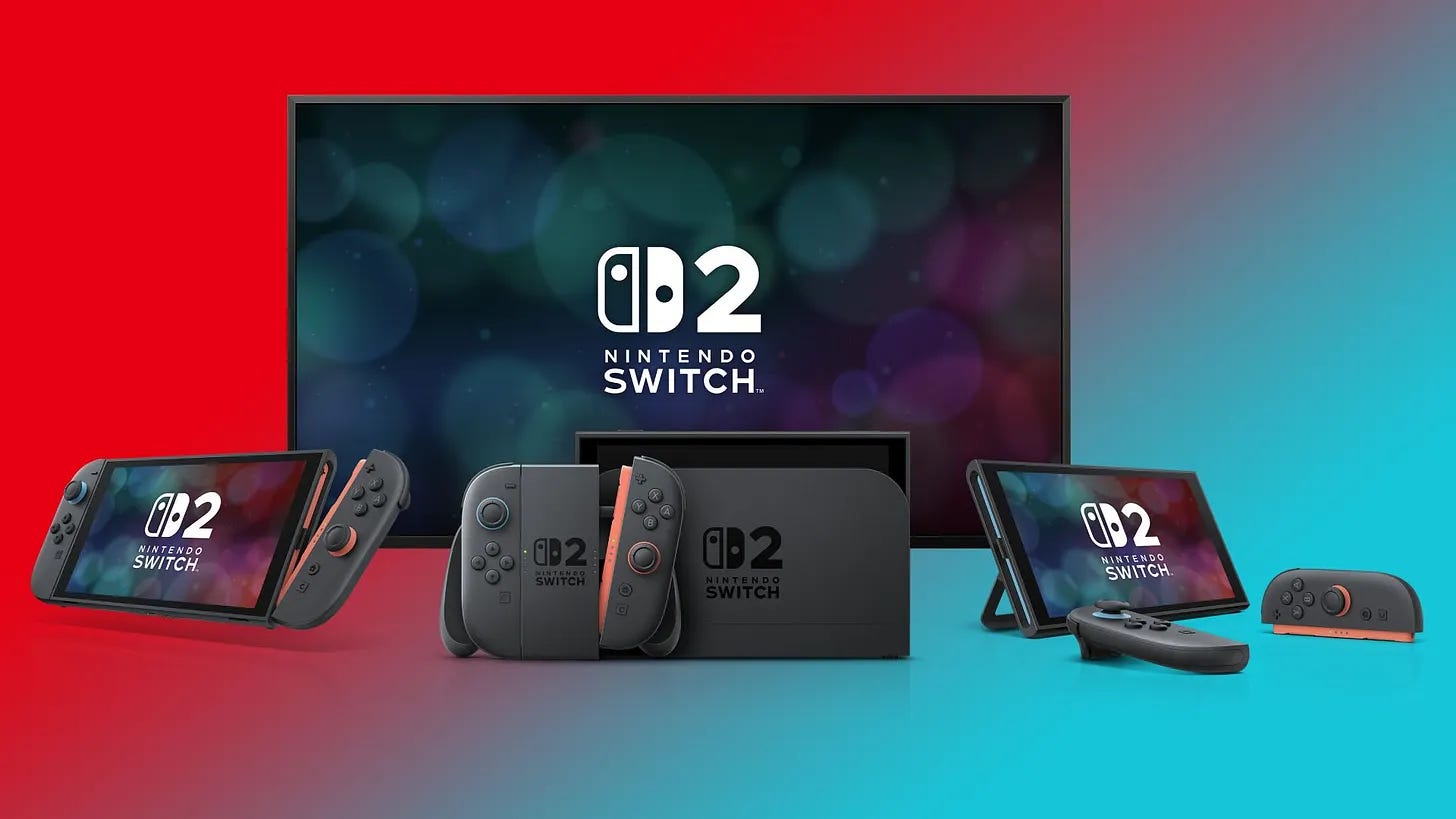

👏 Nintendo Switch 2 system update 23.0.0 adds VRR (variable refresh rate) support in TV Mode, requiring a compatible TV and a dock update
👍 Users can now toggle Handheld Mode Boost on and off directly from the Quick Settings menu
🚀 Complete data transfer is now supported between two Switch 2 consoles, transferring all data including saves and screenshots
🎶 The update adds background music to the Mii editor, GameChat improvements, and temporary online licenses for offline virtual game cards
It’s been a jam-packed week for Nintendo after two back-to-back Directs, and now the Japanese company has released a new system update for Switch 2 that adds a long-awaited feature: VRR support in TV Mode.
Previously, VRR – or variable refresh rate – was only available when playing the Switch 2 in handheld mode. VRR helps mitigate the feeling of frame rate drops, eliminates screen tearing, and provides a smoother experience overall. However, when the Switch 2 was docked, VRR was disabled, which created a frustrating disparity between the two modes.
To enable VRR, you’ll need to have a TV that supports the feature and also update the Switch 2 dock. Annoyingly, it seems like developers will have to enable VRR support on a per-game basis, as opposed to the feature being applied at a system level.
As part of update version 23.0.0, VRR has now been added, along with some other welcome additions. For instance, you can now toggle Handheld Mode Boost on and off from the Quick Settings menu, classic music tracks have been added to the Mii editor, GameChat has been improved, and you can now perform a system transfer between one Switch 2 console to another – handy if you plan on picking up The Legend of Zelda 40th anniversary edition Switch 2.
Here are the full patch notes:
We’ve added a feature that displays chats you’ve previously participated in, in the list of chats you can join.
We’ve made it possible to join a new chat without selecting any friends.
We’ve added a button to change the screen size in the menu that appears when you press the C button during a chat.
We’ve added a “Settings” option to the “Virtual Game Card” list screen.
You can check the registration status of the device using the virtual game card.
VRR output is now supported in TV mode. When both the software and the TV support it, the video will be output at a refresh rate that matches the game’s processing speed. An update to the Nintendo Switch 2 Dock is required to enable this feature.
Nintendo Switch 2 now supports “complete data transfer” between two Nintendo Switch 2 consoles. You can transfer all your data, including save data and screenshots, from your Switch 2 to your new Switch 2 console.
Made the following changes in “Settings”.
Under “Accessibility” → “Text-to-Speech,” we have added support for text-to-speech in Portuguese (Brazil).
Under “Accessibility” → “Voice-to-Text Conversion for Game Chat,” we’ve added Portuguese (Brazil) to the list of languages for “Text-to-Speech Conversion.”
We’ve made it so that the “Audio” -> “TV Sound” settings are saved for each connected TV.
The item name “Display” → “Dock Output Information” has been changed to “Video Output Information” to allow users to check in detail the video signals that the connected TV can display.
We’ve added a “VRR Settings” option to the “Display” section.
We’ve added a feature to “Mii” that allows you to create a QR code of your Mii and share it with other users.
We’ve added a feature that allows you to instantly play and check the sound when you change the volume under “Sleep” → “Sleep wake-up sound when playing on TV”.
We have added an item to “System” → “Switch Software Operation Mode” → “Toggle Handheld Mode Boost in Quick Settings”. Turning this setting ON will allow you to toggle the Handheld Mode Boost ON/OFF in the Quick Settings menu that appears when you long-press the HOME button.
We’ve added a new option: “System” → “Transfer all to Nintendo Switch 2”.
Even if you cannot transfer the virtual game card from another console when starting the software, you can now temporarily play the software using an online license. If another console is offline and you are unable to transfer the virtual game card, the “Play with Online License” button will appear. Only the person who purchased the software can play it using an online license.
added a feature to play background music in the Mii editing screen. You can switch or stop the background music (BGM) using the “BGM Settings” button in the upper left corner of the screen.
Regarding handheld mode boost, we’ve made it possible to use other controllers even while Joy-Con 2s are attached to the console.
In the “My Page” → “Profile” play record, play time when playing the same software on multiple consoles will now be aggregated. The games you’ve played since the update will be displayed in chronological order.
We have fixed several issues and improved operational stability.
The Nintendo Switch has also received a new firmware update:
We’ve added a “Settings” option to the “Virtual Game Card” list screen. You can check the registration status of the device using the virtual game card.
Even if you cannot transfer the virtual game card from another console when starting the software, you can now temporarily play the software using an online license. If another console is offline and you are unable to transfer the virtual game card, the “Play with Online License” button will appear. Only the person who purchased the software can play it using an online license.
We have fixed several issues and improved operational stability.
Nintendo has also updated Nintendo Switch 2 Welcome Tour so that the VRR Slider Demo works in TV Mode, as previously – for obvious reasons – it did not.
Up next: The Legend of Zelda 40th anniversary edition Nintendo Switch 2 and Pro Controller: where to buy
Adam Vjestica is The Shortcut’s Senior Editor. Formerly TechRadar’s Gaming Hardware Editor, Adam has also worked at Nintendo of Europe as a Content Marketing Editor, where he helped launch the Nintendo Switch. He also runs a retro gaming YouTube channel called Game on, boy! Follow him on X @ItsMrProducts.