


The Shortcut, in its quest to make the holidays easier with tech tips for our Substack subscribers, tapped editor Max Buondonno to detail how he created a personalized card for his sister. Here are 5 prompts to help you generate your own card.

I always forget to get a good card this time of year, and frankly, picking one up from the store feels like a waste of time. I can always do better than a generic store-bought holiday card.
Just picture it: a cart full of gifts, you’re close to the check-out line, and you have to spend the next 30 minutes sifting through the leftover holiday cards. Hoping one will resonate with your family member or friend is not a game plan.
That’s where I’ve enlisted Adobe Firefly into my holiday tradition. The company’s all-in-one AI creative studio helped me create a card using simple text prompts.
The best part? Right now, eligible Firefly plans get unlimited image and video generations in the Adobe Firefly app through January 15.“ If you have cardstock handy, that’ll make the whole process even quicker.
Here are five easy prompts I used to create my own holiday card using Adobe Firefly.
Advanced Users: 5 prompts to get you started
Prompt 1
This is the one I went with in my step-by-step example below. Please don’t tell my sister, who is receiving this card. 🤫
A claymation-style Christmas card with a mommy reindeer holding her new baby, sitting in a field of snow with Christmas trees in the background.

Prompt 2
I saw this cute card in stores ages ago. But I couldn’t find anything like it in recent years. Time to create the idea in 2025!
A festive Christmas card with a Polaroid photo of a golden retriever wearing a fake, glowing red nose.

Prompt 3
I flexed Adobe Firefly’s partner model, Google Nano Banana, to create this one.
A holiday party in the style of classic Peanuts cartoons. Include a bunch of kids enjoying festive games and wearing Santa hats, with Santa Claus coming down the chimney in the background.

Prompt 4
Any number of classic winter-themed prompts will generate a suitable card. You can also instruct Firefly to adhere to certain styles like “cartoon,” “watercolors,” or “realism.”
A snowy mountain top with snow falling amongst the trees. Include an older brother and little sister. Make it look like a cartoon.

Prompt 5
The more specific I was with my AI prompts, the better I found the results.
An elegant Christmas card with golden angels around the border. Have the angels playing trumpets with musical notes flowing through the ends of the instruments.

Beginners: How to implement prompts in Firefly
Need more instructions? Let’s take the first prompt and run through how to generate my holiday card from start to finish…
Step 1: Generate a festive cover

I wanted to make a Christmas card for my little sister, who’s expecting her first baby girl this April. For that, I envisioned a festive cover for the card where a reindeer is holding her baby, and all I needed to do was enter a few prompts to get it the way I wanted.
Visit firefly.adobe.com on your desktop or laptop. There’s also a Firefly app available on iPhone and Android, but for this, we’re using a laptop since it gives you a bigger canvas to get creative.
You’ll find the place to enter your prompt right on the homepage. Enter your idea, then select the AI model you’d like to use. We took advantage of Adobe’s own Firefly Image 4 model since everything it creates is commercially safe, but if you’re a fan of partner models like Google Nano Banana or GPT Image, you can use those, too.
Here’s the prompt we used at first: “A claymation-style Christmas card with a mommy reindeer holding her new baby, sitting in a field of snow with Christmas trees in the background.”
Step 2: Refine your work the way you want

Today’s AI image editors allow you to refine your creations, so it’s a good thing that Adobe gives you daily complimentary credits with your account to tweak your design the way you want. You can redo your prompt a few more times to lock in exactly what you want. Or, instead, you can use Adobe’s tools to “inspire” the AI to match the aesthetic you’re chasing.
I wanted the image to match the claymation stylings of holiday hits like Rudolph the Red-Nosed Reindeer and Santa Claus is Comin’ to Town, so I uploaded image references under “Composition” and “Styles” to reference exactly what I wanted my cover to look like.
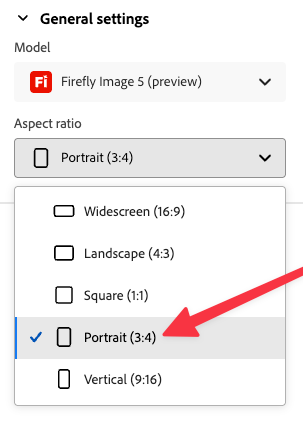
Don’t forget to change the aspect ratio to fit your idea I also had to resize the image to fit on a card, which I did by heading to the “Aspect ratio” tab. If you want that classic card orientation, select “Portrait” from the drop-down.
It formats the art in 3:4, which will only be slightly cropped when you move it to a 5x7 card, but your subject will remain centered.
You can choose different effects, lighting, and color tones for your image, too, which Firefly can incorporate into your design. I’m a fan of warm lighting at golden hour over a field of snow, so I chose those settings before I re-generated my image. With my claymation references loaded, I hit the blue “Generate” button again to refine my image.

Step 3: Add a custom message to the front

My cover is looking great so far. I picked the fourth option Firefly generated for me since it looked the most endearing to me (pun absolutely intended🦌).
Once you choose the image that speaks to you most, you can then click on the Edit tab at the top to edit your image, add text, and more. I wanted to add a personal Christmas message to the front, and here’s how I pulled it off.
I typed into the prompt box: “Below the reindeer, write ‘Merry Christmas, Lucy’ in an elegant, cursive font with glitter accents.”
I was able to use the Firefly Image 5 model to add the text, but you can also choose a third-party model if you wish.
Step 4: Edit the rest in Adobe Express

One of the biggest perks of using Adobe Firefly for creating your holiday card is the ability to take it right into Adobe Express to finish the job. If you aren’t familiar, Express is Adobe’s free and easy way to create social media posts, flyers, cards, and more in a pinch with high-quality graphics, text tools, and effects. We’ve used it before to create a Mother’s Day Card.
With your refined card cover open in Firefly, click the “Download” button to save it to your computer in high resolution.
After it’s saved, visit express.adobe.com and click the purple “+” button.
On the first page, add your Firefly-generated cover by choosing Add content > Media > Upload from device. Once your image is uploaded, reposition it so that it fills out the full cover without cropping out any of its crucial components (like my reindeer and text).
Add a second page for your message inside at the bottom of the screen. You can then add text, seasonal design elements, and backgrounds to make it your own. I went with a simplistic design that ties in with my cover, as well as a handwritten font to jazz it up.
Step 5: Print it & gift it

When you’ve locked in your final changes, you can download your two images for printing on cardstock. You can also order a print of your card directly from Zazzle, or take your images to your local CVS, Walgreens, or Staples to be printed for you.
Click the download button at the top of the screen.
From there, choose to download all of the pages in your project. Then, hit the big “Download” button.
A ZIP file with both images will then be saved to your computer. You can extract them and send them to a printer to be printed, or do it at home if you have the supplies.
It took less than 15 minutes
Making a custom holiday card sounds like a lot of work at first, but I managed to make mine in less than 15 minutes, half the time I’d be in line just buying a card.
Better yet, my personalized card for my sister cost me much less than any store-bought card, making Adobe Firefly indispensable during the holidays. You can make your own holiday card in Adobe Firefly here.
Next: Check out our Holiday Gift Guide 2025 for 70 tech gift recommendations. And stay tuned for wall-to-wall CES 2026 coverage in January!